Which distracting websites to block, and how to set up your list
A good block list is short and specific. It holds the sites you open without thinking, not every site that could waste your time. This guide helps you pick those sites and decide when they should ask before opening. It also shows how to leave room for the times you really need them.
Pick sites by habit, not by category
Start with what you actually do. For two or three days, notice which sites you open when a task gets hard or when you are waiting for something. Write them down. Those are your list.
A first list might hold a few feeds and video sites, one news site and maybe a shop. That is enough to start. When you catch a new habit later, you can add that site with one click.
- Add a site when you notice yourself opening it with no reason.
- Leave out sites you only visit on purpose. They do not need a prompt.
- Add whole domains. Adding youtube.com also covers m.youtube.com. Single pages cannot be listed.
Set schedules for your work hours
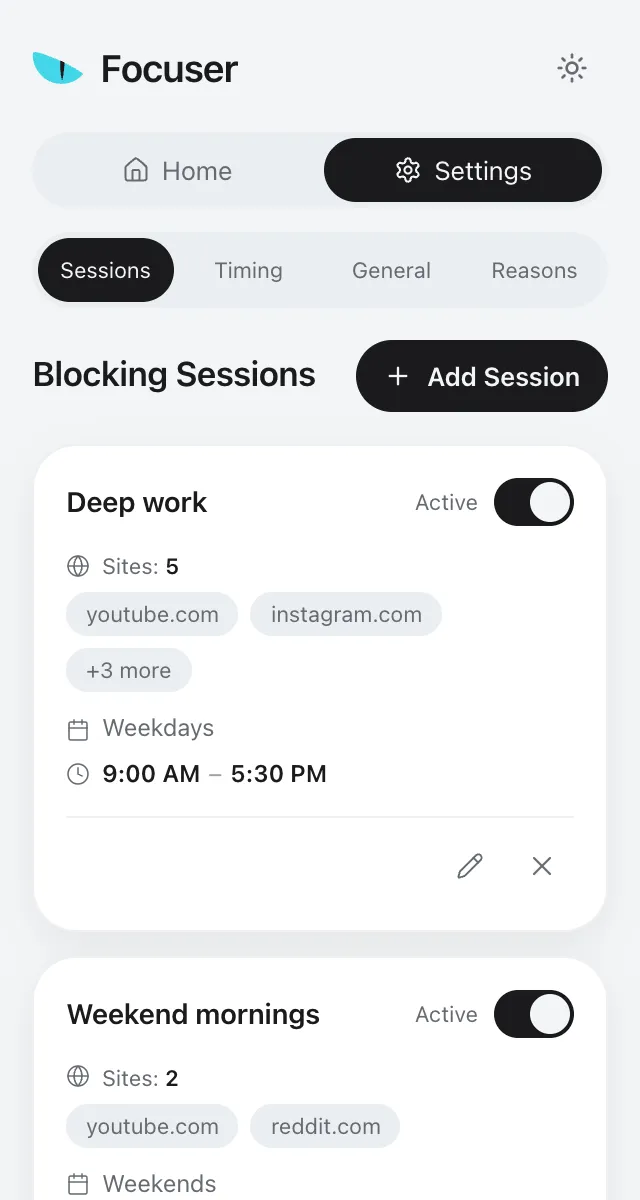
Some sites are fine in the evening and a problem in the middle of a workday. A schedule handles that. Give it a name if you like, choose sites from your list, pick the days and set a start and end time. The default is Monday to Friday, 09:00 to 17:00.
You can create more than one, for example one for workdays and another for weekend mornings. Schedules can run overnight, so 22:00 to 07:00 works too. Each one has its own on and off switch.
While a schedule is active, the prompt tells you which schedule paused the site. The prompt also has a shortcut to create a schedule for the site you are on.
Always block or Sessions only
Focuser also needs to know what to do with listed sites that are not in any schedule. Pick Always block if every site on your list is a problem at any hour. Pick Sessions only if you mainly want quiet work hours and free evenings.
- Always block is the default. Sites that are not in a schedule ask on every visit.
- Sessions only lets those sites open without a prompt. Only your schedules make sites ask.
Keep a quick pause for real needs
Sometimes you need a listed site for a minute. A friend sends a link, or you need to check one detail. You do not have to remove the site from your list. Use the quick pause instead.
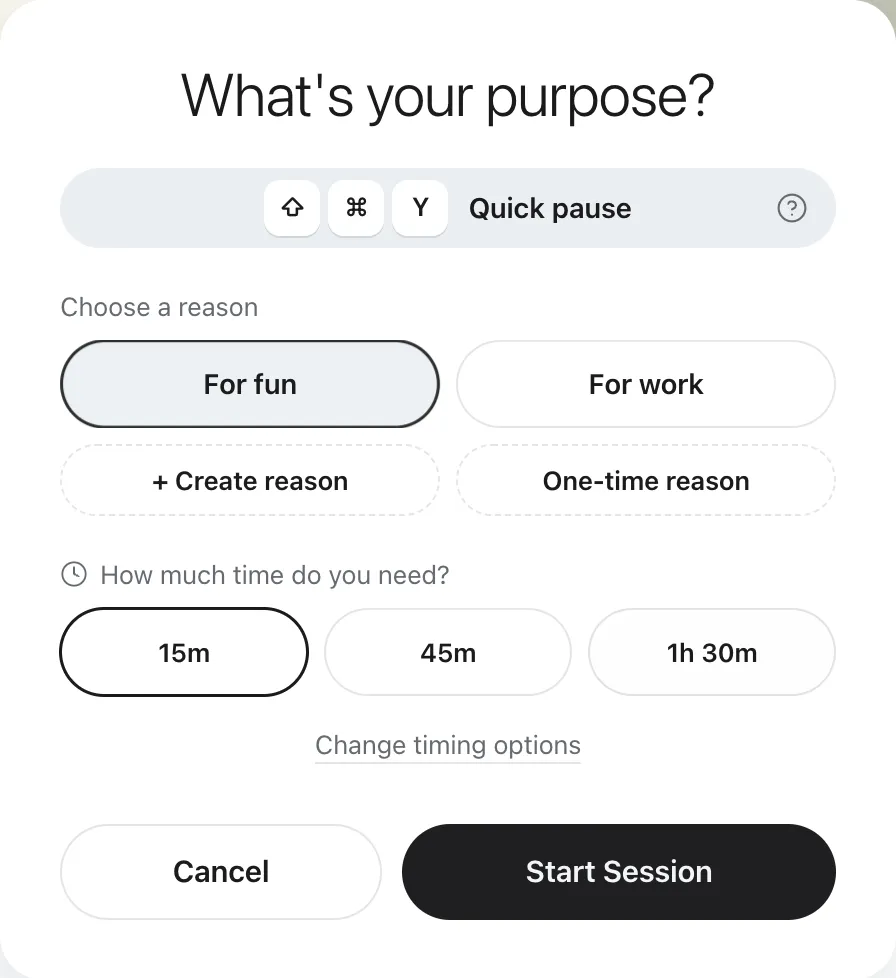
Press Ctrl+Shift+Y, or Command+Shift+Y on a Mac, on a listed site. You get 1 minute by default, and you can change this to 3 or 5 minutes in Settings, under Timing. A 15 minute cooldown starts when you press the keys, so quick checks cannot chain into a long visit.
For longer visits, give a reason and pick a time. You can add your own time options in Settings, from 1 minute up to 24 hours.
Review your list now and then
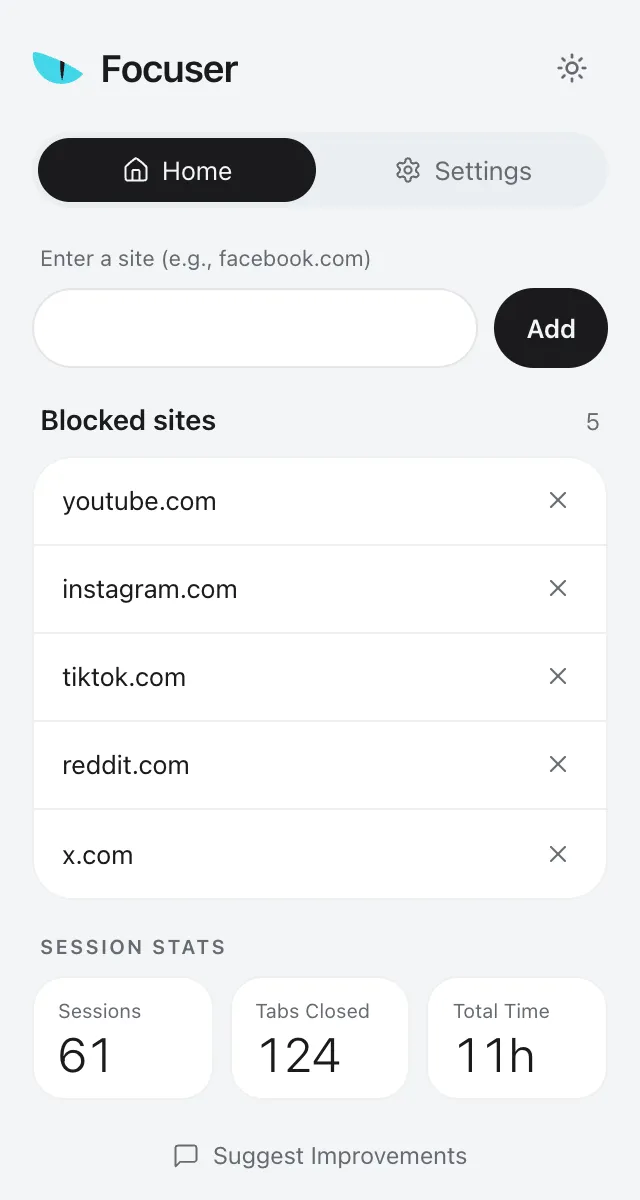
The popup shows your stats since install: sessions, closed tabs and total time. Use them as a rough guide, together with your own sense of how the week went.
If you keep typing the same one time reason, save it as a custom reason so it takes one click. If a site only pulls you in during certain hours, move it into a schedule. If a site no longer tempts you, take it off the list.
Common questions
How many sites should I block?
Start with the few you open most often without a reason. A short list is easier to live with, and you can add more with one click.
Can I block a site only during work hours?
Yes. Put it in a schedule with your work days and hours, then choose Sessions only so it opens without a prompt at other times.
Can I block only part of a site?
No. Focuser works with whole sites, and a domain also covers its subdomains.
What if I need a blocked site right now?
Use the quick pause for 1, 3 or 5 minutes, or give a reason and a time limit. You are never locked out.
Should I block news sites?
If you open them on reflex, yes. You can still read the news. Give each visit a reason and a short time limit, and close the tab when the timer ends.
Give your next visit a reason
Add Focuser to Chrome and start with two or three sites. It is free, it needs no account, and you can remove it from the toolbar at any time.
Add Focuser to Chrome