How to block websites in Chrome
Chrome on a computer has no setting that lets you block a website for yourself. There are other ways to do it, and each one suits a different person. This guide compares the options in one table and then shows how to set up Focuser step by step.
What Chrome offers on its own
Chrome's site settings control what a site is allowed to do. You can stop a site from sending notifications, showing pop ups, playing sound or running JavaScript. None of these settings stops the site from opening.
Chrome does have two ways to block sites, but neither is made for blocking your own distractions. With Chrome policies, an administrator can block a list of URLs on a managed browser. This is how schools and companies do it. With Family Link, a parent can block sites for a child's Google Account. On a Windows, Mac or Linux computer, the child can sign out of Chrome, and the blocks then no longer apply.
Outside Chrome, you can edit your computer's hosts file to block a domain in every browser at once. You need administrator rights to change it, and you have to edit the file again to undo a block.
The options compared
If you are an adult on your own computer, that leaves the hosts file or an extension. The hosts file is a hard block with no exceptions. Extensions range from strict blockers to gentle ones like Focuser, so you can pick the kind of friction you want.
| Option | Made for | What it does | How you set it up |
|---|---|---|---|
| Chrome site settings | Everyone | Blocks features such as notifications and pop ups. The site still opens. | In Chrome settings |
| Chrome policies | Schools and companies | Blocks listed URLs on managed browsers | An administrator sets them |
| Family Link | Parents | Blocks sites for a child's Google Account | In the Family Link app |
| Hosts file | People comfortable editing system files | Blocks a domain in every browser on the computer | Edit a system file with administrator rights |
| Focuser | People who open sites on reflex | Pauses the site and asks why you are there. You can continue with a reason and a time limit. | Install it from the Chrome Web Store |
Checked November 2026
Set up Focuser in Chrome, step by step
Setup takes a few minutes, and you do not need an account.
- Add Focuser from the Chrome Web Store. Chrome will warn that the extension can read and change data on all sites. Focuser needs this so the prompt can appear on any site you add.
- Pin the Focuser icon to the toolbar so the popup is always one click away.
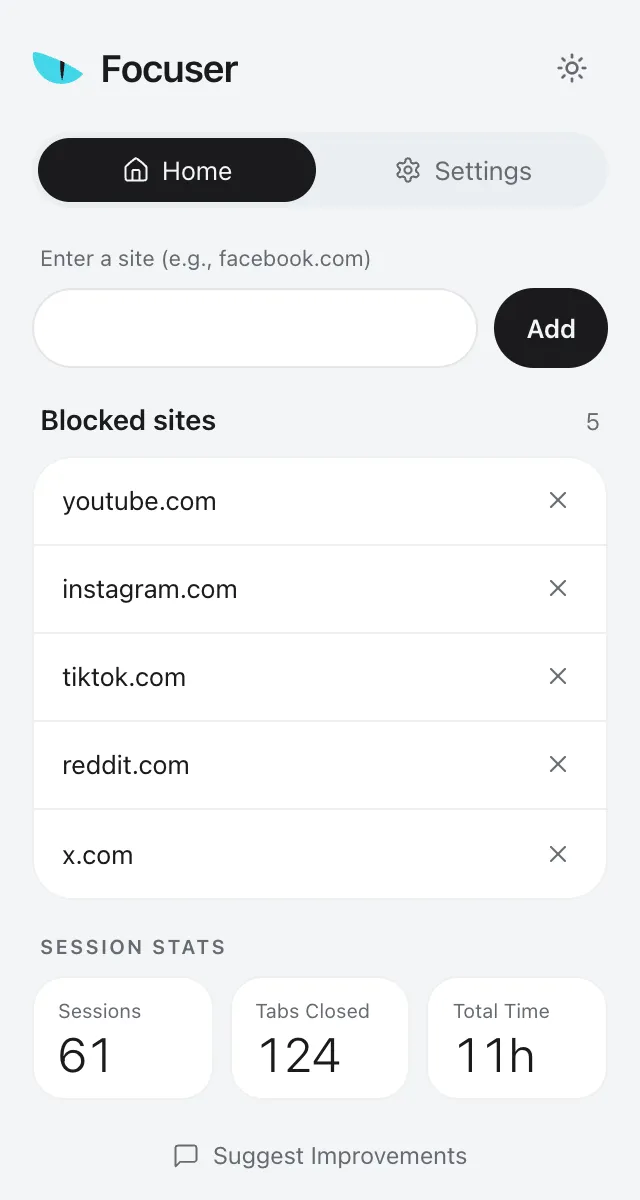
- Go to a site that distracts you, open the popup and add the current tab with one click. You can also type any domain into the field.
- Repeat this for each site. A domain covers its subdomains, so youtube.com also covers m.youtube.com. Focuser works with whole sites, not single pages.
- Open one of those sites in a new tab to see the prompt.
What you see on a listed site
Once a listed site loads, the prompt covers it and pauses any video. Press Esc to close the tab, or press Enter to continue. If you continue, pick a reason and choose how long you need. A small timer then shows your purpose and the time left. When the time is up, the prompt comes back.
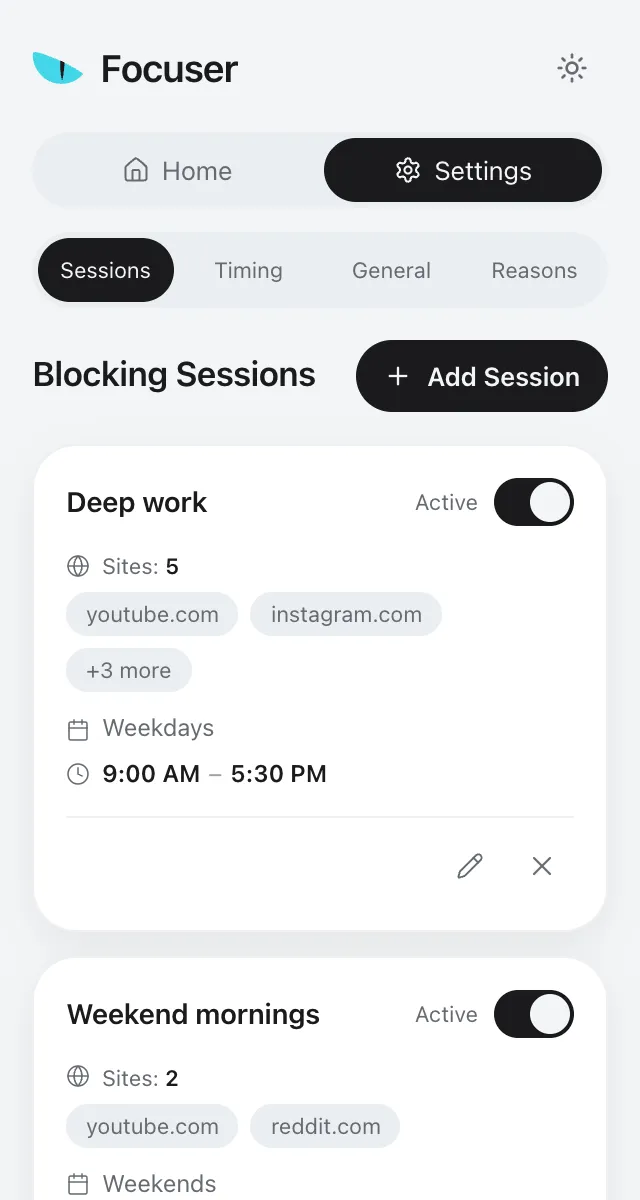
If you only want the prompt during work hours, create a schedule in Settings. Choose sites from your list, the days and the hours. The default is Monday to Friday from 09:00 to 17:00, and schedules can run overnight. Then decide what happens to listed sites that are not in any schedule. Always block asks on every visit. Sessions only lets them open without a prompt.

Incognito, shortcuts and sync
Focuser works in Incognito windows after you allow it. Find Focuser in chrome://extensions and turn on Allow in Incognito.
The quick pause opens a listed site for 1, 3 or 5 minutes. The shortcut is Ctrl+Shift+Y, or Command+Shift+Y on a Mac. To use different keys, change them at chrome://extensions/shortcuts.
Your sites, schedules and reasons are saved in Chrome storage. If Chrome sync is on, they sync through your own Chrome profile. Stats stay on the device, and nothing is sent to Focuser servers.
Common questions
Can I block a website in Chrome without an extension?
Not from Chrome's own settings. The options are a policy on a managed browser, Family Link for a child's account, or the hosts file on your computer.
Does Focuser work on Chrome for Android or iPhone?
No. Focuser is made for Chrome on desktop computers.
Can I block one page instead of a whole site?
Not with Focuser. It works with whole sites, and a domain includes its subdomains.
Do I need an account?
No. Install Focuser, add your first site, and it works.
Why does Chrome say Focuser can read and change data on all sites?
Focuser needs that permission so the prompt can appear on any site you add. The extension makes no network requests, and nothing is sent to our servers.
Sources
Read next
Give your next visit a reason
Add Focuser to Chrome and start with two or three sites. It is free, it needs no account, and you can remove it from the toolbar at any time.
Add Focuser to Chrome